KnowledgePilot is a research and knowledge-management tool that turns long-form content, including PDFs, Word docs, ebooks, and YouTube videos, into clear, structured, source-backed analysis. The pitch is simple: paste a link or upload a file, and instead of just getting an AI-generated summary you have to take on faith, you get insights that link directly back to the exact passage or video timestamp that supports them. You can verify every claim in seconds instead of wondering if the AI made it up.
Summarize a PDF with KnowledgePilot
What is KnowledgePilot?
Beyond one-off summaries, KnowledgePilot also acts as a personal research library. Every document or video you analyze is saved into a Knowledge Hub, so you can group related sources together, by project, topic, or client, and ask questions across all of them at once, not just one file in isolation. It supports YouTube video links plus PDF, DOCX, TXT, RTF, MOBI, and EPUB files up to 40 MiB (about 400 typical pages), and offers a free tier with 40 starter credits, no credit card required.
With that context out of the way, here's exactly how to use it to summarize a PDF.
1. Create a free account
Head to knowledgepilot.app and create an account. No credit card is required. New accounts get 40 starter credits after email verification, which is enough to test the tool properly before deciding whether to pay for anything.
2. Upload your PDF
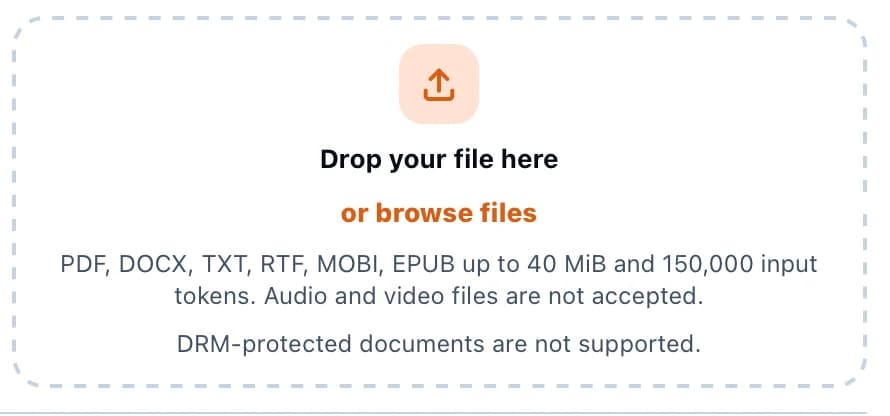
From the app's Home screen, click Create new analysis. KnowledgePilot accepts PDF, DOCX, TXT, RTF, MOBI, and EPUB files up to 40 MiB, roughly 400 typical pages, as well as YouTube links. Just drag in your PDF, and the platform extracts the text and gets it ready for analysis. Note that DRM-protected documents aren't supported.
3. Choose your outputs
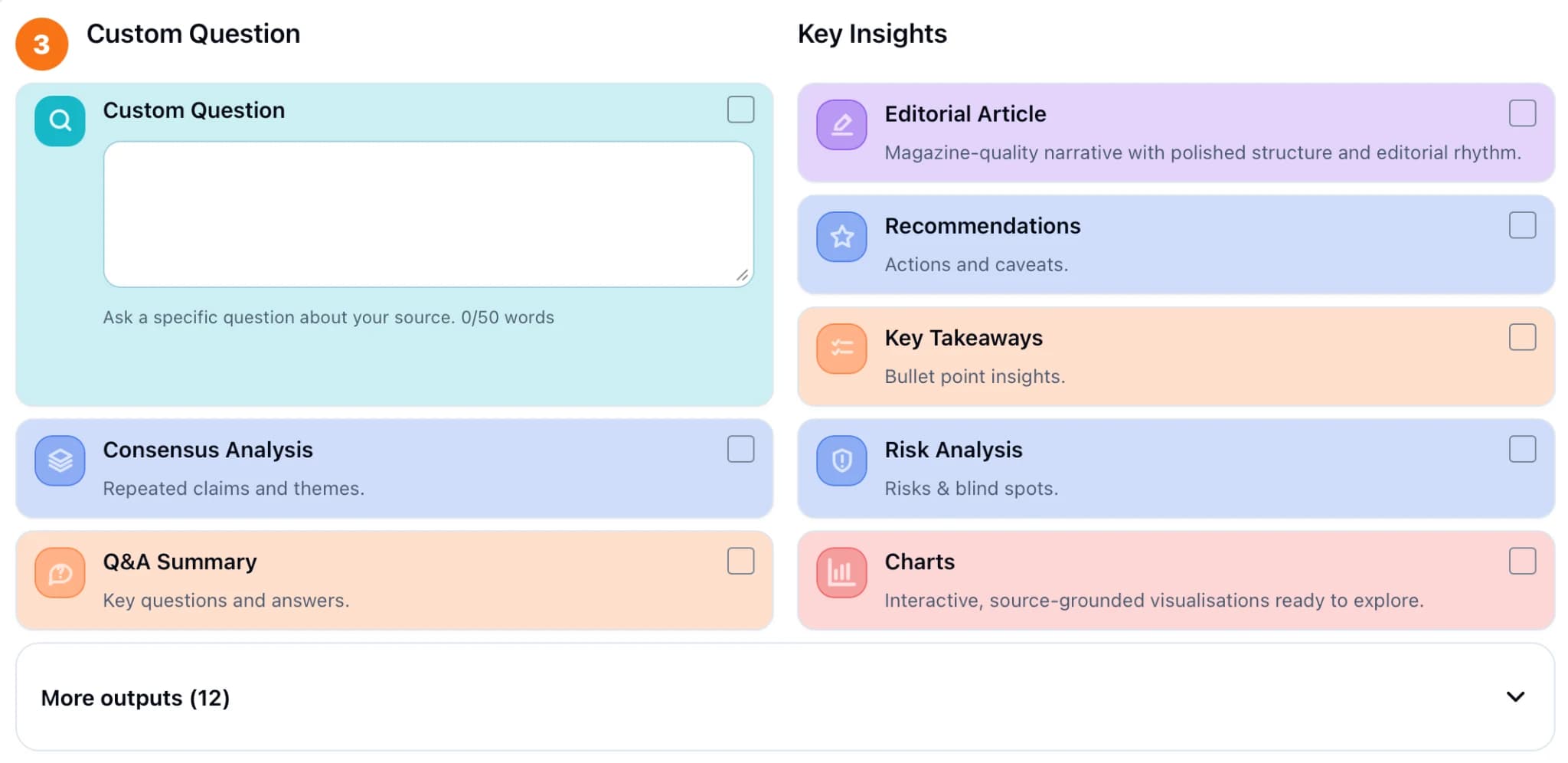
This is where KnowledgePilot differs from a basic "summarize this" chatbot prompt. Instead of one generic summary, you pick from a menu of output types, including:
- Key Takeaways: bullet-point insights
- Editorial Article: a polished, magazine-style narrative version
- Q&A Summary: key questions and answers pulled from the document
- Consensus Analysis: repeated claims and themes
- Recommendations: actions and caveats
- Risk Analysis: risks and blind spots
- Charts: interactive, source-grounded visualizations
- Custom Question: ask something specific about the document in plain language
You can also apply an optional analysis framework, like the built-in Earnings Call Analysis preset, if you want framework-guided answers rather than a general summary. Select as many outputs as you want in one pass. The dashboard shows an estimated credit cost and processing time before you commit.
4. Let it process, then read with sources attached
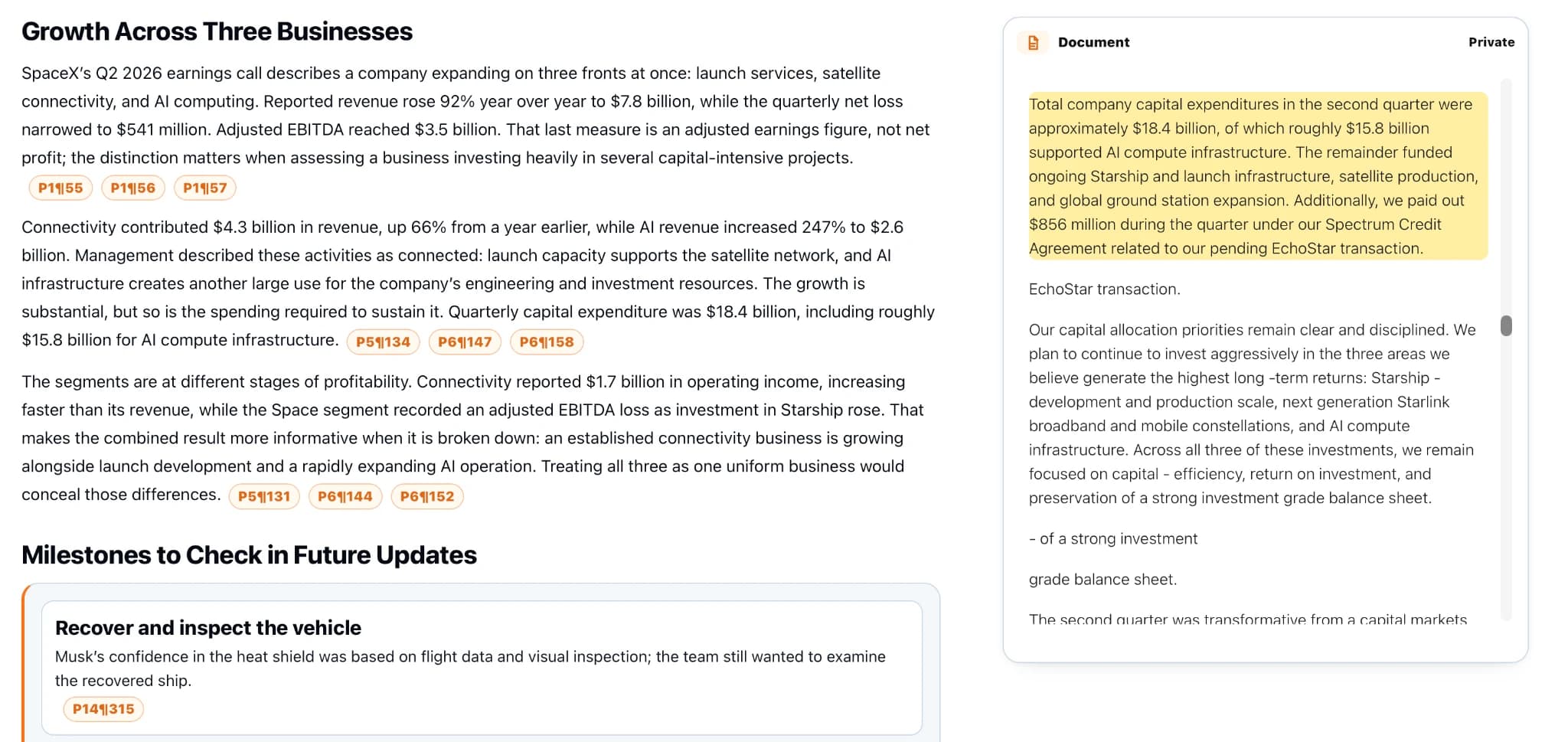
Once the analysis runs, you get your selected outputs with paragraph-level references back into the original PDF. Every summarized point links to the exact passage that supports it, so instead of just trusting the AI's word, you can click through and check the source yourself in the built-in document viewer. This is arguably the most useful part of the tool, since it turns a summary from "AI said so" into something you can actually verify in seconds.
5. Save it to your Knowledge Hub
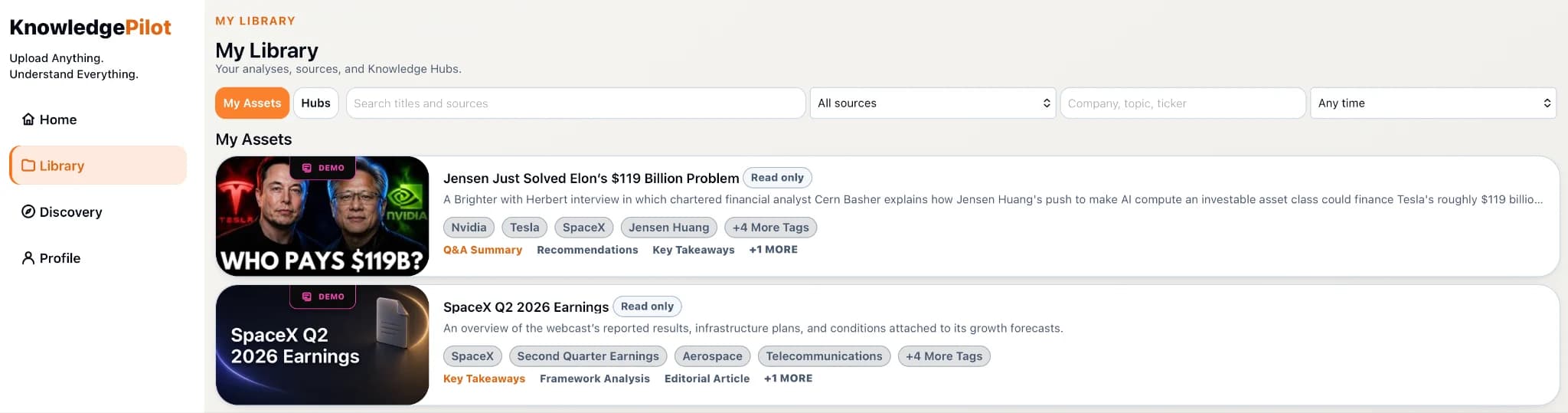
Rather than treating the PDF as a one-time upload, KnowledgePilot keeps the original source in your Knowledge Hub. That means you can come back later and generate a completely different output from the same document. For example, you might summarize a report for key takeaways today, then return next month for a risk analysis or a set of custom Q&A from the same file, without re-uploading anything. You can also group multiple PDFs and YouTube videos into one Hub and ask questions that span all of them at once.
6. Ask follow-up questions
If the summary sparks a question the standard outputs didn't answer, use the Custom Question field to ask it directly. Answers are grounded in the document you uploaded, or the whole Hub if you're querying across multiple sources, using the same source-citation approach.
What this looks like in practice
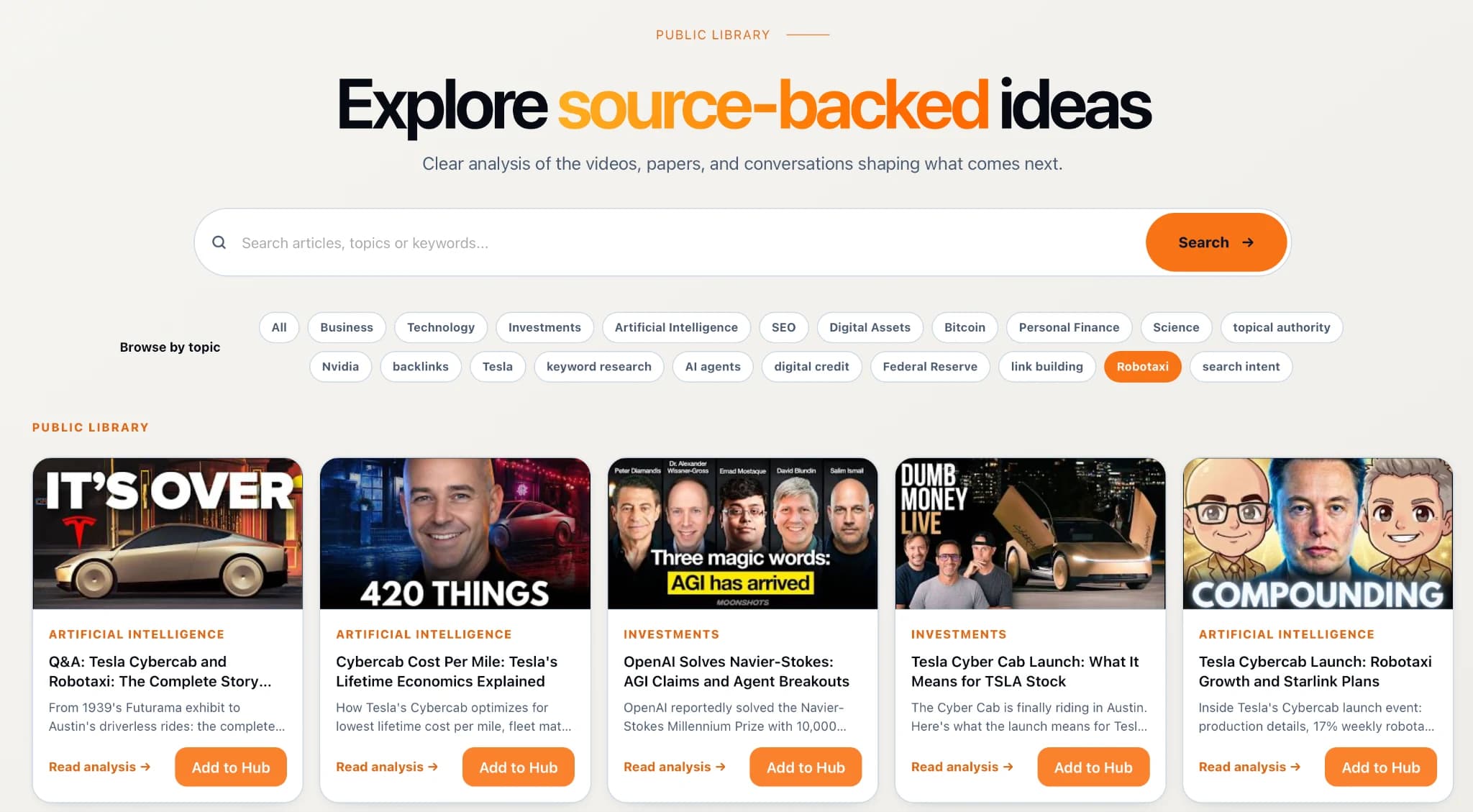
KnowledgePilot's public library has dozens of real examples of this kind of source-backed Q&A analysis. Most are built from YouTube videos, but they follow the identical output format you'd get from a PDF: a list of key questions, concise sourced answers, and a link back to the original material for verification. It's a good way to get a feel for the output style before uploading your own document.
A couple of honest caveats
Per KnowledgePilot's own Q&A page, AI can still make mistakes or misread context, so it's worth verifying anything important using the source citations before acting on it, especially for business, legal, or financial decisions.
Continue with PDF Summarizer With Citations: How to Check the Evidence, compare the approach with How to Summarize Long YouTube Videos: A Practical AI Workflow, or explore How to Search Engineering Guidelines With AI and Check the Source.
How we help
How KnowledgePilot fits the workflow
KnowledgePilot turns PDFs and other supported sources into structured, source-backed analysis. Choose the outputs that match your goal, follow the evidence back to the original passage, and keep the source in a Knowledge Hub for later questions. Check important answers against the original document and review the current FAQ for formats, credits and retention terms.

Frequently asked questions
What is KnowledgePilot??
Beyond one-off summaries, KnowledgePilot also acts as a personal research library. Every document or video you analyze is saved into a Knowledge Hub, so you can group related sources together, by project, topic, or client, and ask questions across all of them at once, not just one file in isolation. It supports.
What should you know about 1. Create a free account?
Head to knowledgepilot.app and create an account. No credit card is required. New accounts get 40 starter credits after email verification, which is enough to test the tool properly before deciding whether to pay for anything.
What should you know about 2. Upload your PDF?
From the app's Home screen, click Create new analysis. KnowledgePilot accepts PDF, DOCX, TXT, RTF, MOBI, and EPUB files up to 40 MiB, roughly 400 typical pages, as well as YouTube links. Just drag in your PDF, and the platform extracts the text and gets it ready for analysis. Note that DRM-protected documents.
Bottom line
If you just need the gist of a PDF, plenty of tools can bullet-point it for you. What makes KnowledgePilot worth trying is the verification layer. Every summarized insight traces back to a specific spot in the document, so you're not just getting a summary, you're getting a summary you can actually check.